Release notes
What’s new in AURA ENGINE 2.0 Beta
AURA ENGINE 2.0 Beta puts one AI assistant inside a photoreal 3D model of the real world. Ask in plain words: it finds the data, draws the answer on the map, and lets you test a design on the actual site.
AI assistant
An assistant that works in the 3D view
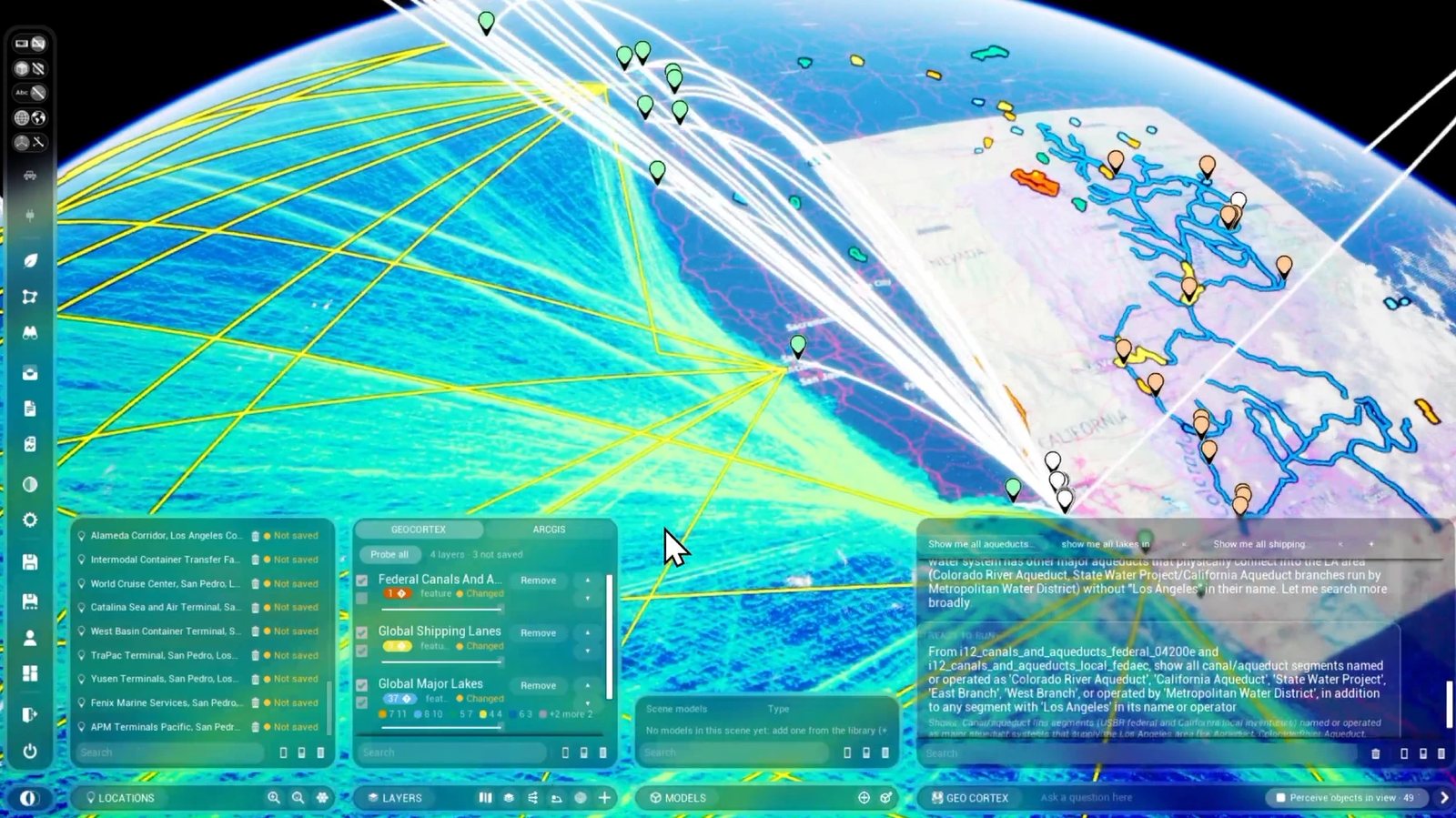
- Ask in plain words, and it acts. It flies the camera, orbits a site, sets the sun, opens panels and plays tours. Every answer ends with what it actually did: “Flew to Pershing Square”, or “Couldn’t fly to X” and why.
- One assistant everywhere: the desktop app, the Ask AURA website and the AURA EOS web app.
- Up to 8 chat tabs, each its own conversation, running in the background.
- Big requests become a plan, with a cost estimate and your OK before anything that needs it.
Data on the map
Questions become real map layers
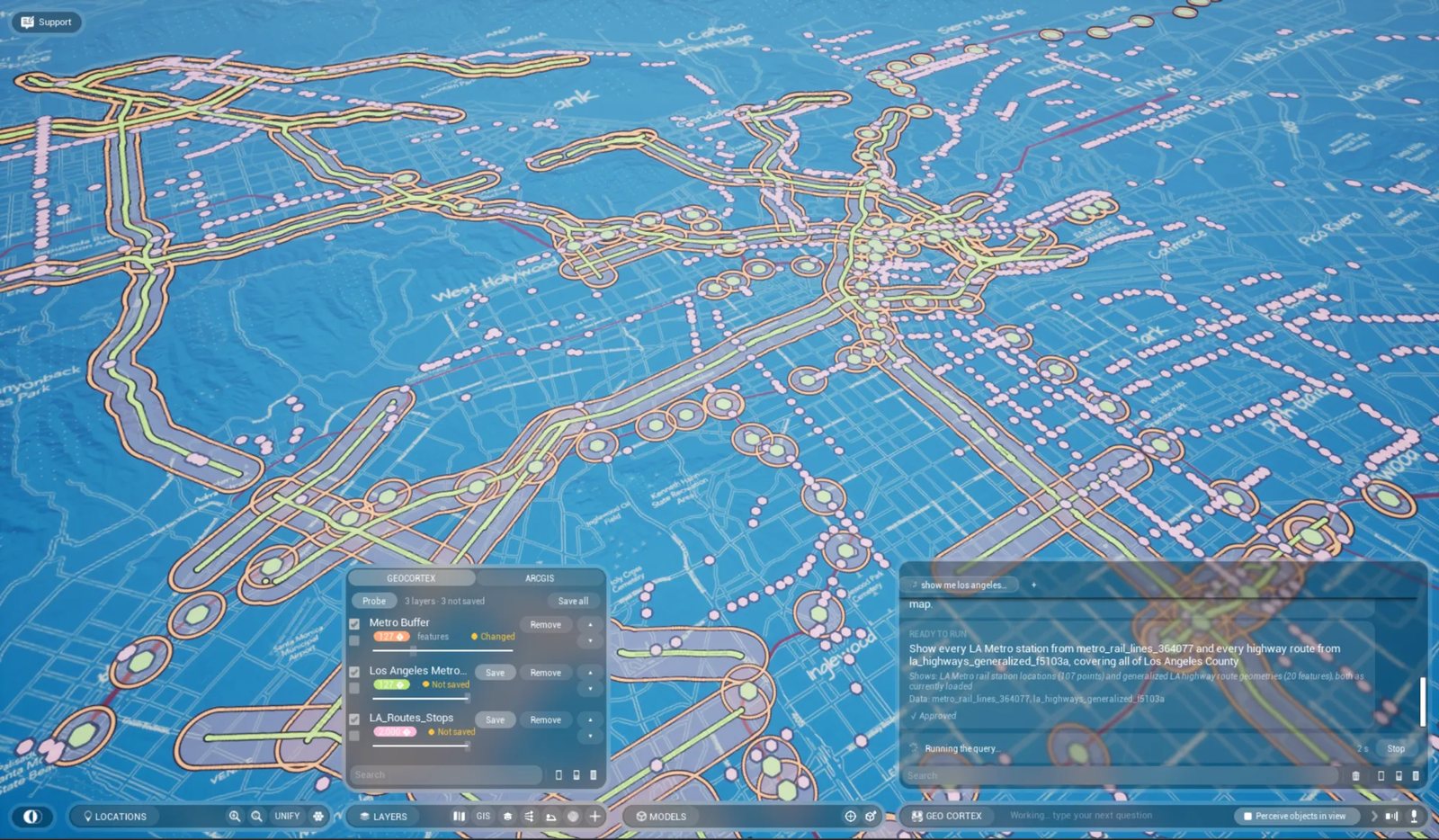
- Ask a data question, get a layer that drapes on the terrain, with a count, a legend and a readable title.
- Click any feature for its card, with friendly column names and units, and “Ask about this” to follow up.
- Restyle any layer: swatches, a colour wheel, colour by column, line width and point size.
- “Fly to the largest one.” Jump to one result by size, distance, name or number.
- Probe a spot to bring every visible layer’s features into the chat.
- Hex bins, clusters, nearest distances, and walk or drive-time areas. Bring your own CSV, Excel, KML or shapefile.
Design on the real site
Building Gen v2
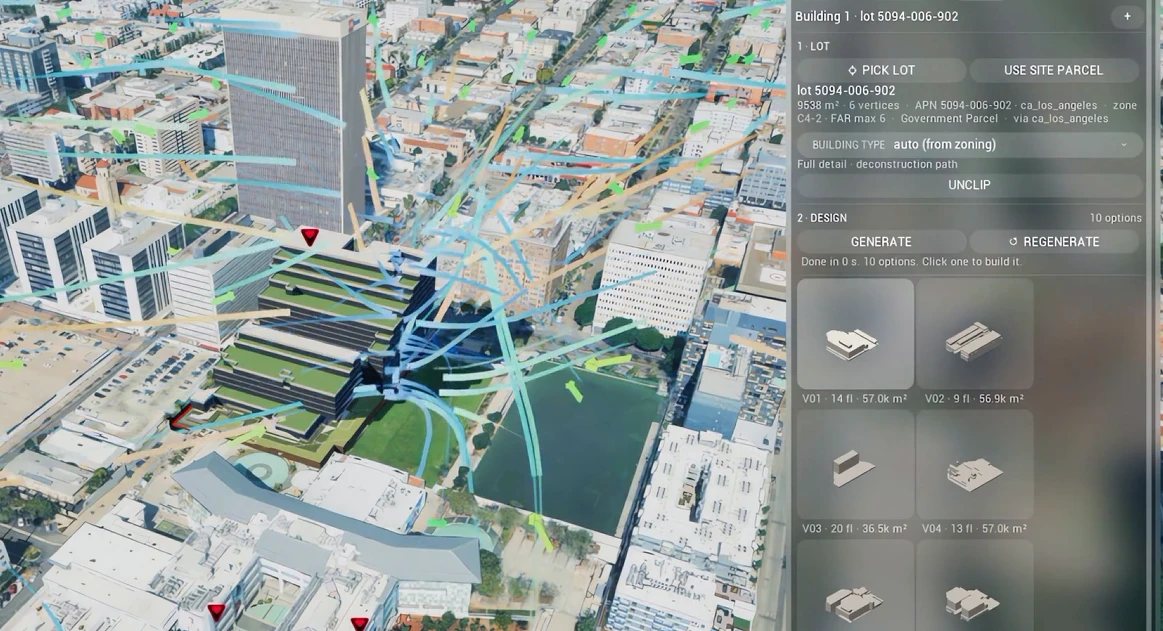
- Pick a real parcel: it draws in under a second.
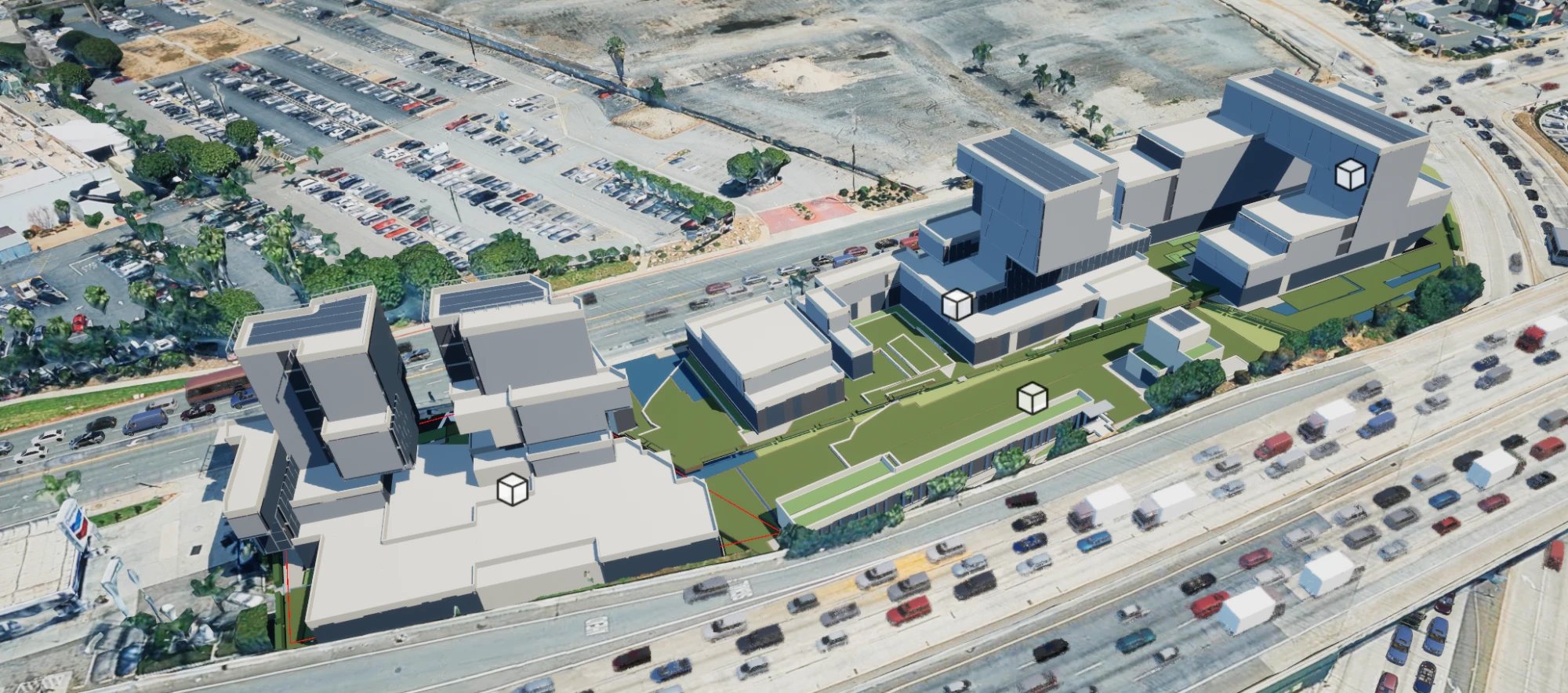
- Set a brief (FAR, storeys, coverage, programme) and get 5, 8 or 12 massing options, towers included.
- SAVE TO SCENE keeps a design in your workspace, at any size, with the photoreal city cut away beneath it.
- Site forces: a 3D study of sun, sky view, wind, noise, terrain, drainage and zoning edges (signed in).
- A Model Library for your own 3D models, and a gizmo that moves in map directions, snaps, takes typed values and undoes.
Sun and environment
Sun Path and sun hours
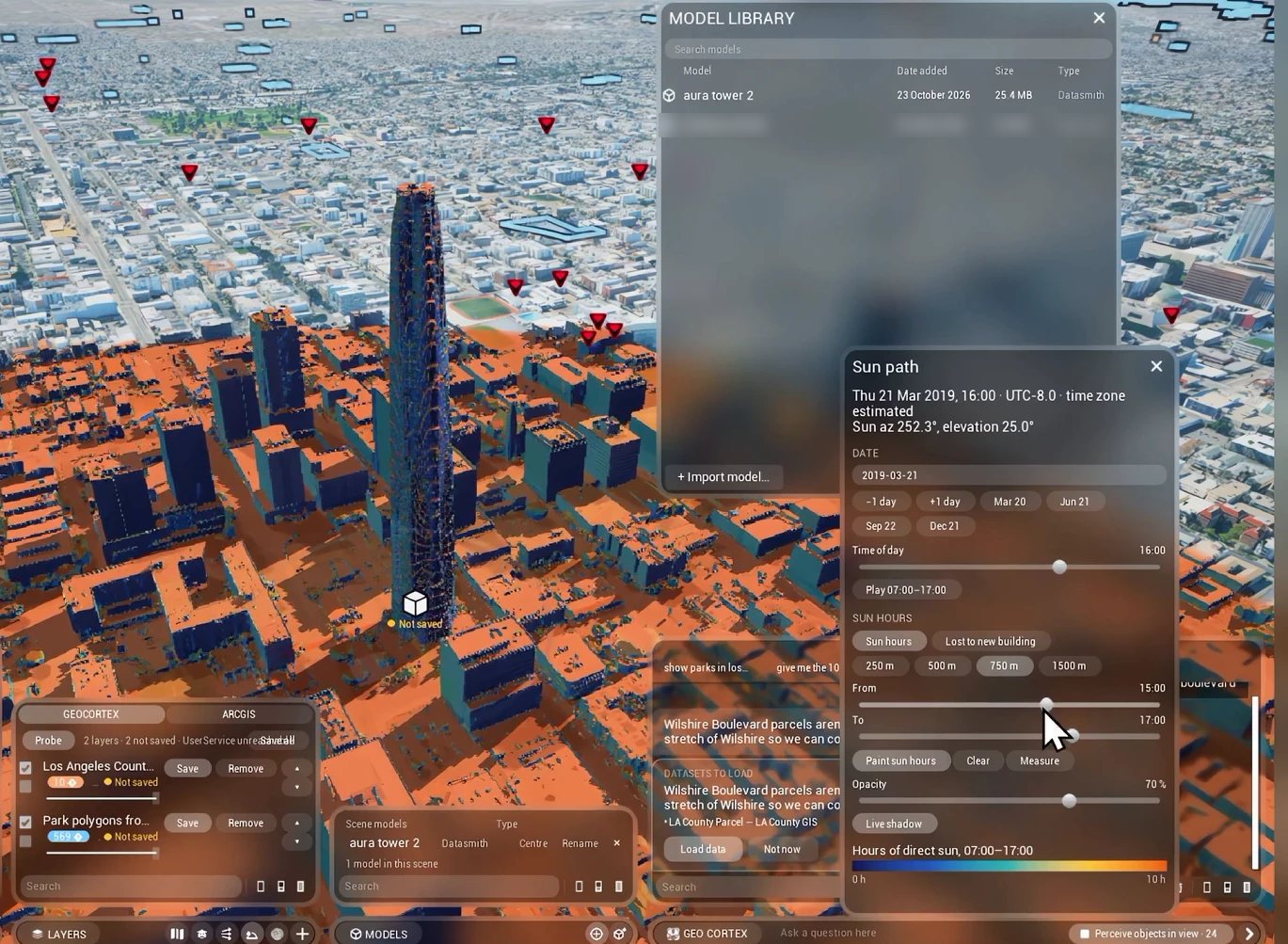
- Any date and time in the site’s own time zone, with solstice and equinox shortcuts and a day sweep.
- A sun-hours heatmap painted on the real city, and the sun a new building takes away.
- Correct shadows and sky lighting, including on your own models.
Live traffic
Traffic on real roads, anywhere
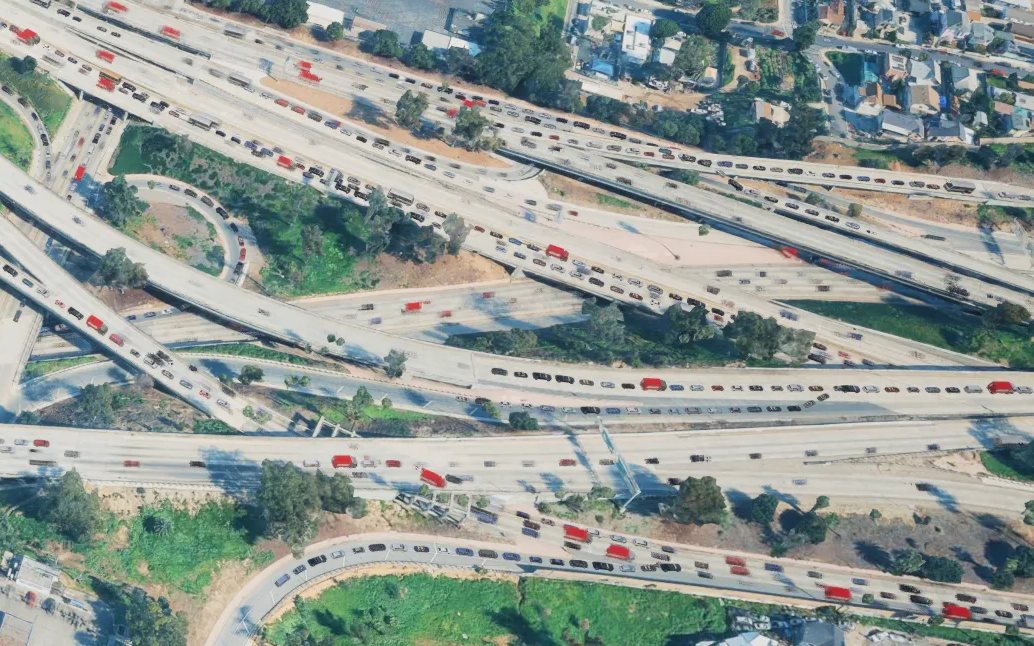
- Signals, stop signs, merges and queues near the camera, with lighter flow out to several kilometres.
- Real vehicle models: sedans, SUVs, pickups, vans, trucks and buses.
- In California, live CHP incidents and Caltrans closures slow the affected lanes.
- Nothing to install. Off until you switch it on.
Faster and steadier
City scale, at speed
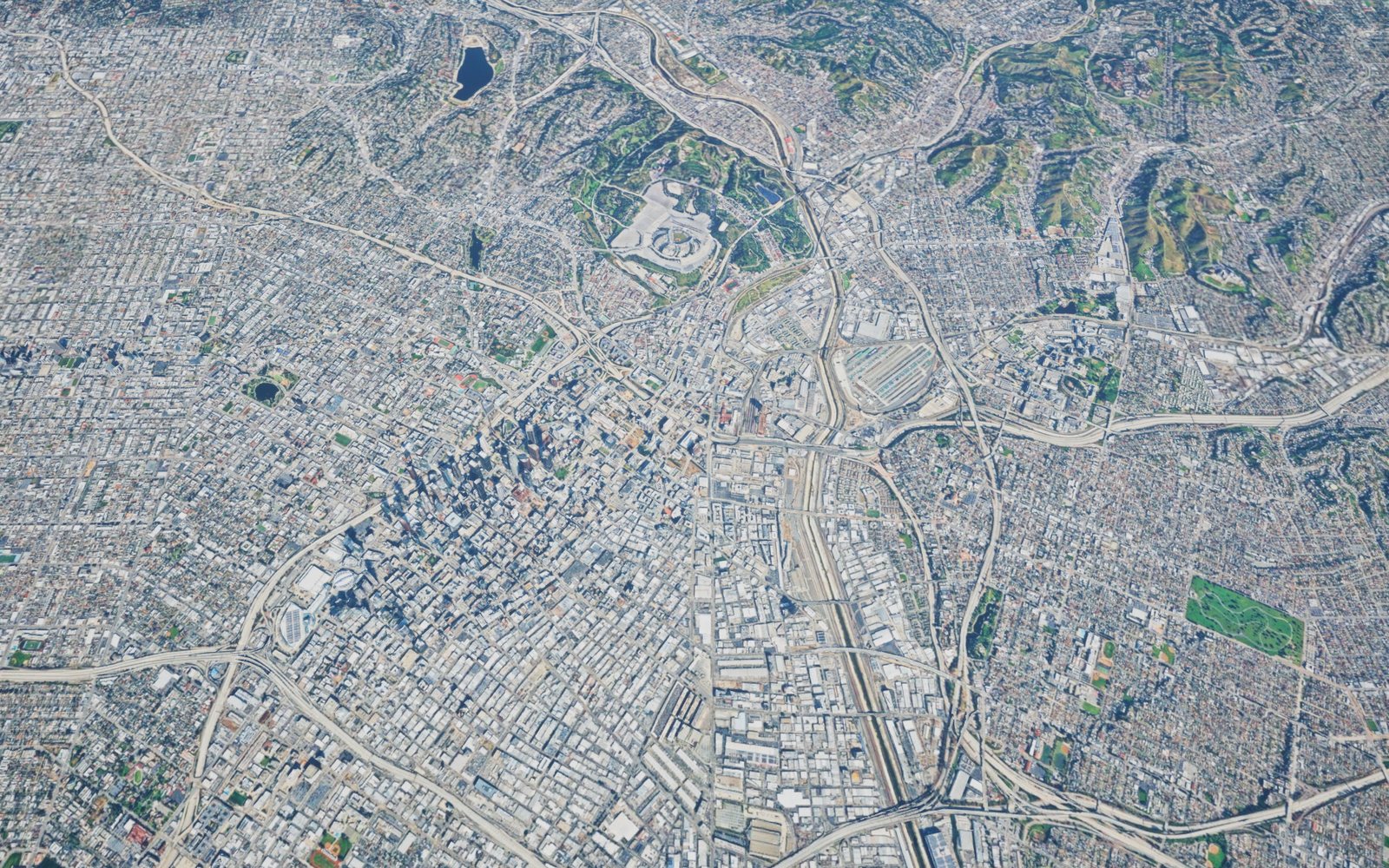
- Downtown Los Angeles with traffic: about 10 → 72 frames per second on our reference laptop.
- A first-run hardware test picks your graphics quality.
- Crash fixes, including the ArcGIS globe crash and a chat auto-approve crash. Quitting and reopening workspaces no longer hang.
- A darker, cleaner interface with movable windows.
Foliage
Paint the landscape
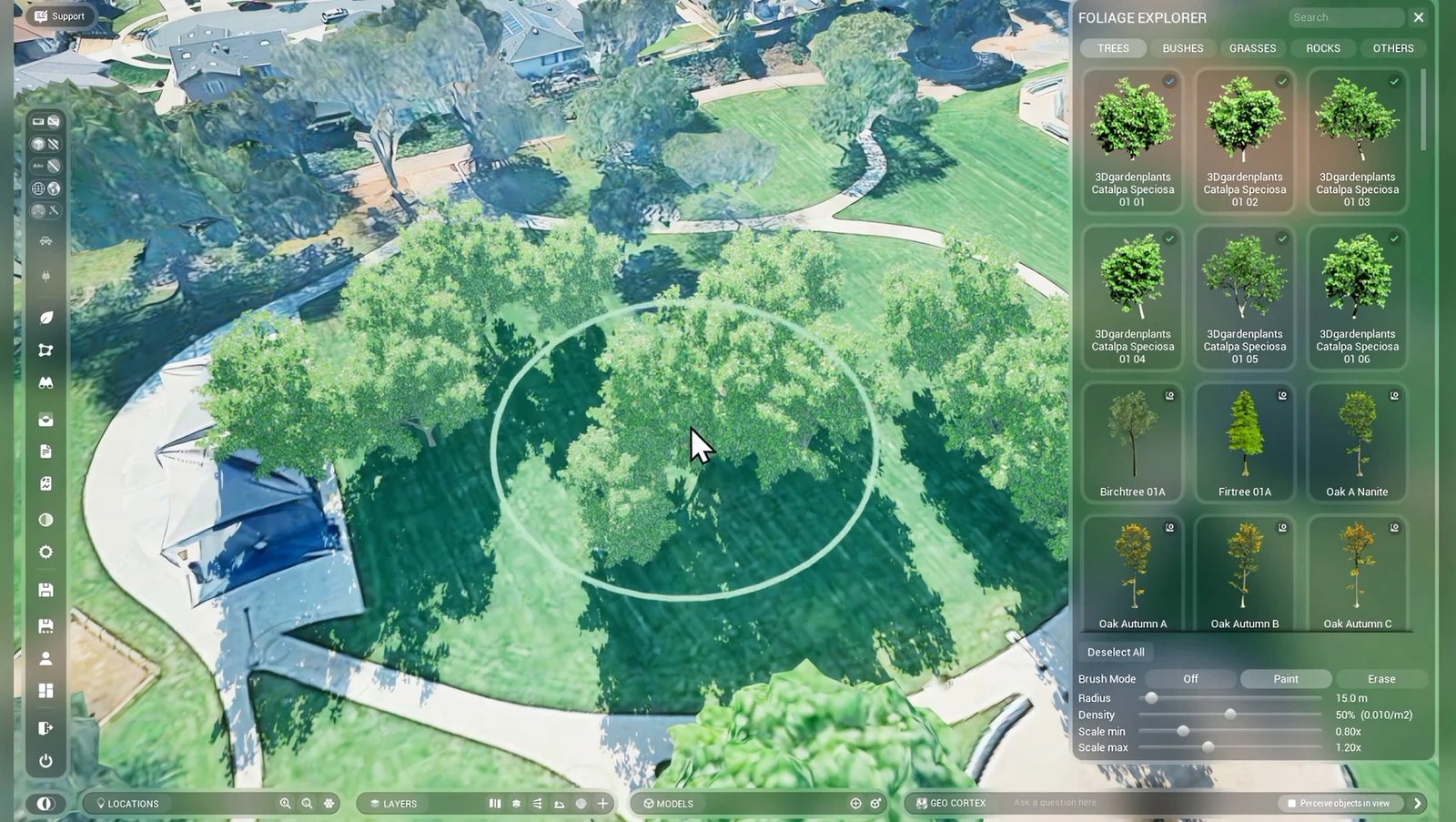
- Paint trees and plants onto the 3D city from a catalogue of 414 species, mixed in one brush, at real-world size.
- Plants and rocks render as instances, each with a real shadow, so whole stands stay fast.
- Plants save with your workspace. Click one for its botanical and common name.
Also new in 2.0
Layer Library
- 279 curated public layers to search, filter by city, add or fly to, each with its credit.
- “Draw as GeoCortex” turns a linked ArcGIS feature layer into a queryable AURA layer.
Documents
- Add a PDF and ask it. Answers cite the page, and a citation opens it.
- A library for PDF, Word, CSV, Excel, KML and shapefiles: search, tag and restore.
- Photos and web pages as documents, attached to a place.Arrives Mon Oct 26
Workspaces you can trust
- Workspaces reopen whole: layers, pins, models, plants and views.
- Save badges, and an unsent save is no longer lost on the next open.
- Version history: what changed, compare with now, name a version.Arrives Mon Oct 26
Claude connect
- Let Claude Desktop or Claude Code drive AURA on your own machine: fly, set the sun, read the scene, take screenshots.
- Local only, and off until you switch it on.
Parcels and places
- Fetch Parcel draws the real lot in about a second, with APN, land use and year built.
- Parcels from 95 free county and state sources in about 20 states.
- Places found by the assistant or a document become real locations, with citations and confidence.
AURA EOS on the web
- A 3D globe in the browser at askaura.auraengine.com/eos, with panels, a command palette and sign-in.
- Chat takes you anywhere by name or address and gives a tour, even signed out.
- Drop in your own glTF or IFC model, with real shadows and sun hours.
The full 2.0 changelist
Everything new since the last public release, grouped.
Assistant & chat 28
- One AURA assistant everywhere: the desktop chat bar runs the same assistant as the Ask AURA website and the AURA EOS web app. The old two-mode chat switch is gone.
- The assistant drives the 3D view. It can fly to a place, orbit a site, stop, open or close panels, set the sun, and play or stop guided tours.
- Simple requests such as “fly to Griffith Park”, “stop” or “play the tour” run instantly, without waiting for the AI.
- Fly-to works right after start-up, even before the map has finished loading.
- Ask the assistant to list your saved views, switch the basemap, or change a layer’s opacity, order or visibility.
- Ask the assistant to open a window by name, such as Sun Path, Documents, Sharing or Workspaces. “Sun” opens Sun Path.
- Search results arrive as real AURA location pins, up to 200 at once and grouped together, and they save with the workspace.
- Ask for places of one type within a radius, for example “cafés within 500 m of here”, and they are pinned on the map.
- Ask for a place’s phone number, website or opening hours.
- If no map is open, the assistant asks which saved map to use instead of showing an error.
- “Perceive objects in view”: a checkbox beside the chat (on by default) lets the assistant see your selection, the locations and models on screen and the place you have open, so it can answer “what am I looking at?”.
- Every answer ends with what was actually done (“Flew to X”, “Flying to X…” or “Couldn’t fly to X” with the reason), followed by a numbered Sources list.
- The assistant no longer invents places or reuses remembered coordinates, and it warns you when the place it found doesn’t match the one you asked for.
- Totals, counts and acreage are computed from the real result rows.
- Better place matching: “West Virginia” is no longer read as Virginia, partial street addresses match, and “the largest one” or “one of them” is read as a pointer to a result, not a place name.
- A redesigned chat thread with a live status line and Stop, approve and decline cards, result cards with a plain-language summary, and a “New messages” pill.
- No more empty or doubled bubbles or a stuck typing indicator, and late replies no longer land in the wrong turn.
- Clearer messages when the server is busy, a limit is hit, a request times out or an approval has expired.
- Clear Chat now really clears the conversation and the layers the chat drew.
- Long questions no longer fail after 30 seconds: the connection stays alive while the server works.
- Chat tabs: run up to 8 conversations side by side. Tabs are named from the first question, can be renamed inline, and keep working in the background.
- Each chat tab shows an icon for working, done, unread or error.
- Narrator: as the assistant carries out map steps, the camera makes a short flight to each result and shows a caption. Any failures are summed up once at the end.
- One-turn building studies: “test a 6-storey massing on this lot” runs lot, brief and generate in order. “One of them” is narrowed to one result, or you are offered up to 4 choices.
- Guided recipes in the desktop app: “fly and frame” and “find a place” run step by step.
- Ask for a locked feature and you get the sign-in or unlock message first, with no tools run and no budget spent.
- Cascades: one big request splits into steps that run side by side in their own tabs, with a cost estimate, a plan view and Stop.
- A “Needs your OK” chip takes you to any cascade step that is waiting for your approval.
Data questions & map layers 30
- Results draw correctly: re-running a query replaces its layer instead of stacking copies, hidden layers stay hidden, point layers stay, and colour changes apply.
- Feature counts are honest, including partial results (“2,000 of 492,005”). Loaded datasets fetch every page, up to 50,000 features.
- Result layers drape on the terrain and follow the hills, instead of floating or drawing underground.
- A layer list for chat results with on/off, opacity, reorder, Save/Retry and Remove. Saved layers reopen with the workspace in the same order and look.
- Layer titles are short and readable, with the full query shown on hover.
- Results are easier to see: filled polygons, dark halos on lines, rims on points, and stronger fills over the ArcGIS basemap.
- A pulsing highlight marks the feature you clicked.
- Result lines and halos draw slimmer, and a width you pick in the style picker draws exactly as picked.
- Results arrive already styled by category or by a colour gradient.
- Restyle any result layer from its row: 12 swatches, a colour wheel, colour by column, fill, line width and point size, or reset. Your choice saves with the workspace.
- The style picker opens fully on screen, and scrolls when it is long.
- Each layer row shows a colour chip with the feature count, and a legend.
- Click a result feature to open an info card. “Ask about this” puts a question about that feature in the chat box.
- Info cards show friendly column names and never a guessed unit.
- Info cards show units such as acres and miles for datasets whose original units AURA knows.
- Measurements such as width and rainfall show as proper numbers on the info card.
- A reopened layer keeps its friendly column names and units.
- Optional hover highlight: tick the box under a layer row to light up features as the cursor passes over them.
- “Fly to the largest one”: the assistant flies to one feature of a result (the largest, the nearest, by name or by number) without re-running the query, and says which one it chose.
- The assistant can read the rows of a layer already on the map, so it can count them or find “the second one”.
- Probe: click a spot on the map and the features of every visible result layer there go into the chat box, attached to your question.
- “Probe all”: one button writes a single question about every layer on screen into the chat box.
- Large results (1,600+ features) arrive without a freeze or an error.
- Result layers no longer lag when you zoom.
- Query any catalogue dataset for your area on demand, fetched live from its source (for example FEMA flood zones). The catalogue holds about 275,000 records.
- Asking to load data “near here” uses where your camera is.
- Spatial analysis is back: hex bins, clustering and Voronoi, plus nearest-feature distances and walk or drive-time areas.
- Bring your own data: CSV, TSV, Excel, KML/KMZ and zipped shapefiles are accepted.
- A failed query tells you the real reason instead of a generic failure.
- New data: New York subway stations and bus stops.
Layer Library & ArcGIS 9
- New Layer Library panel: search AURA’s curated public layers, filter by city, read the credit, add a layer to your workspace, or fly to its coverage.
- Library layers save and reopen with their credit.
- The catalogue now holds 279 published layers.
- “Draw as GeoCortex”: one click on a linked ArcGIS feature layer redraws it as a queryable AURA layer (up to 2,000 features).
- Every layer gets a plain-words AI description, including 3D-building and vector-tile layers.
- Workspaces with many layers no longer trip “Too many requests” and lock the chat out.
- Imported raster (image) layers appear in the layer list and save with the workspace.
- The ArcGIS basemap draws again.
- Cut-outs in the city keep working under a draped map overlay in the installed app.
Building Gen & models 32
- New Model Library window with search, Model / Date added / Size / Type columns, “+ Import model…” and a model count. The MODELS bar’s “+” opens it.
- Scene Models list: every model in the open scene. Click one to select it and fly to it, rename it inline, delete it, or search by name or type.
- A Centre / Origin button moves a model’s gizmo and map icon to the model’s centre or back to its origin. The choice saves with the workspace.
- Library rows show each model’s state (processing with progress, ready, or “Failed · retry” with the reason) and its type (Datasmith, Cooked or Generated).
- A redesigned move/rotate gizmo tracks the cursor exactly, moves in map directions (East / North / Up), stays the same size at any distance, and has a heading ring.
- The gizmo snaps to 1 m and 5° (Shift for 10 m and 15°), and takes typed values such as 42.5, 40ft or x1.2.
- Ctrl+Z and Ctrl+Y undo and redo gizmo moves.
- Click a model to select it, even one with no collision. Click the ground or press Esc to deselect. A newly placed model no longer stays stuck selected.
- Placed models land where you click and sit on the ground, even when the file’s origin is kilometres away.
- Models travel with the workspace: a placed model downloads for anyone who opens the workspace on another computer, cooked models survive a restart, and switching workspace leaves no stray models behind.
- Clearer import failures: the importer offers .udatasmith files and tells you to export with Datasmith, and a model with missing mesh files fails with a reason instead of loading invisible.
- Cooked models show their real materials, and models that use certain engine materials now cook.
- Fixed a crash shortly after a model showed cook progress. Retry on a failed cook works.
- Building Gen is on the MODELS bar, with a redesigned window. Building Gen and Vector Graphs (site forces) run on AURA’s hosted engines when you’re signed in, so there is nothing to install.
- The Building Gen lot picker finds the real parcel. Clicking a street picks the nearest lot, places with no parcel are labelled, and the 40 m placeholder appears only if you choose it.
- The lot draws about a second after you click (it used to take 10–21 seconds). Zoning fills in afterwards, and street clicks get a zoning district too.
- Ask to build “here” and the assistant asks you to pick a lot first.
- Building Gen designs towers on tall-building lots, with roofs and parapets, and can design several buildings at once.
- Choose 5, 8 or 12 design options, each card naming its trait, and regenerate or reseed any design.
- A design brief (FAR, storeys, coverage, programme), with the existing building shown as a ghost.
- Detailed facades in about 1 minute instead of 4.
- The Building Gen window no longer resizes itself while options arrive.
- SAVE TO SCENE turns a generated massing of any size into a normal scene model with an icon and gizmo. It is listed as “Generated” in the library, can be placed again, and reopens offline.
- The photoreal city is cut away under a saved massing. The cut survives reopening, and deleting the massing brings the city back.
- Ask the assistant to run Building Gen or show site forces. Builds report progress every 10 seconds, and several users no longer cancel each other’s builds.
- Site forces: a 3D study of a site covering sun, sky view, wind, noise, terrain, drainage, water and zoning edges, with a probe for any point.
- The first site-forces view appears in about 12 seconds, and a saved forces layer reopens without a new AI call.
- Site forces land in the right place on the map.
- Vector Graphs’ context layers (streets and building heights) cover at least 1.5 km and fill in when the server’s first answer is partial.
- The Vector Graphs “Box frame” toggle now draws a frame.
- Building Gen is clear about what isn’t available yet: PLACE says so at once and keeps the preview, RENDER and DATASMITH are disabled with an explanation, and the assistant stops offering generate-and-place.
- Scenes and documents can place library models, correcting their scale, up axis and ground height.
Documents 16
- New Documents window: add a PDF, Word file, email, text file or GeoJSON and watch AURA build a 3D scene from it, with live progress, a review step and a guided tour.
- Document reading uses AI vision on every page, including maps, site plans and scans. Places appear on the map page by page as it reads, and they land in the right town.
- Each account gets a monthly document-reading allowance, with a line showing what has been used and when it resets.
- “Rebuild live” re-reads a document after telling you what it will cost.
- Document scenes keep a revision history, and chat edits such as “add the trailheads” are saved as new revisions.
- The Documents window is now a library: “Add to library” takes PDF, Word, CSV, Excel, KML and shapefiles, and “Remove from library” takes a document out.
- Ask the assistant about your documents: it searches the library and answers with page citations.
- A document citation in chat is a chip that opens the Documents window on that page.
- Put a spreadsheet’s rows that have locations on the map as an ordinary result layer.
- Search the library and tag your documents.
- Attach documents to selected locations, so the assistant reads them without having to search.
- Restore a document you removed.
- Add PNG and JPG images: AURA reads them with AI vision, like a PDF page. Arrives Mon Oct 26
- A web page is kept as a snapshot when it is first read, so later answers and citations use that copy. Arrives Mon Oct 26
- Attach documents to placed models and saved layers from the Documents window. Arrives Mon Oct 26
- A location’s card shows a Documents row with its attached documents. Click one to open its page. Arrives Mon Oct 26
Sun & environment 12
- The sun is in the right place: shadows have the correct direction and length, and local time zones and daylight saving are correct.
- A twilight fade stops buildings being lit at night.
- Black shadows are fixed: the shaded sides of models, and their shadows, are now lit by the sky.
- New Sun Path panel: date and time with solstice and equinox shortcuts, a day sweep, and a live shadow.
- A sun-hours heatmap painted on the real city, including “sun lost to a new building”.
- Click to measure hours of sun at any point, including on the roofs and facades of placed models.
- Sun-hours repaints once the detailed buildings have loaded.
- “Set the sun to 9 am on 21 December” always uses the site’s own time zone, including British Columbia’s permanent daylight time from 1 November 2026.
- Ask the assistant to paint sun-hours around placed models for a date and time range.
- New look settings: bloom, atmosphere height, aerial perspective distance and Rayleigh distribution.
- A clouds on/off setting that is remembered.
- The night side of the globe looks right with auto-exposure.
Live traffic 9
- Simulated live traffic on real roads, anywhere. Near the camera you get signals, stop signs, merges and queues, and lighter flow continues out to several kilometres.
- Cars fade in rather than popping, and traffic flows steadily instead of jamming.
- A “Live traffic” switch (car icon) in the left menu. Traffic is off until you turn it on, and the switch is remembered between sessions. It greys out and says why when traffic isn’t available.
- Nothing to install: road data streams from AURA’s servers, with 12 pre-built cities plus on-demand anywhere.
- Traffic loads faster: the first cars arrive sooner, revisited areas load in about a tenth of a second, and road tiles no longer reload while you drag the camera.
- Real vehicle models (sedans, SUVs, pickups, vans, trucks and buses) in varied paint colours. They stay true size from any height and cast no stray shadows.
- Cars ride the photoreal hills instead of driving inside them.
- Cars no longer sink into the road at junctions.
- Live road conditions in California: CHP incidents and Caltrans lane closures slow the affected lanes, with red pins and a status line naming the source.
Foliage 24
- New Foliage tool: a leaf button opens the Foliage Explorer, with Trees, Bushes, Grasses, Rocks and Others tabs, search within a tab, and sorted results.
- A live online plant catalogue of 414 species in 8 packs, each with a picture.
- Plant packs download on demand, with a progress bar naming each step and megabytes in the tooltip. The download icon only appears when a download is needed.
- Plant downloads are about 70% smaller (about 1 GB for the first four packs instead of 3.5 GB), with no loss of quality.
- Downloaded packs are integrity-checked and cached, so a pack loads again in under a second.
- Sturdier downloads: large packs no longer freeze, damaged files download again, double clicks are refused, free disk space is checked first, old copies are cleaned up, and a failure says why.
- Plants show their real materials and colours, not flat grey.
- Paint plants onto the 3D city by click-dragging. Spacing stays even at any zoom, and the brush lands on the terrain even if you armed it before the tiles loaded.
- Erase mode rubs out painted plants in an area, whatever the species.
- The brush panel has Off, Paint and Erase buttons, a brush size from 1 m to 200 m, density from 0 to 100% with a plants-per-square-metre readout, and a ring on the ground showing the brush’s footprint.
- Paint several species at once with one brush, and they mix naturally. Each row shows whether that species is not downloaded, downloaded, or in the brush.
- Scale min and Scale max sliders set the range of plant sizes.
- Natural stands: spacing follows each plant’s real footprint, 100% density truly fills the brush, and painting over an area again adds plants.
- While the brush is armed, a left click only paints.
- A “Deselect all” button, and closing the Foliage Explorer turns the brush off.
- Painted plants stay visible out to about 10 km instead of vanishing at 150 m, and shadows stay leafy when the sun is low.
- The heaviest plants are lighter to render.
- A redesigned Explorer: a top-right sidebar with three even columns that you can drag and that snaps back, refreshed tiles for the darker theme, clearer transparent thumbnails, and reorganised categories.
- Click a plant to open an info window with its details and web facts for the species (GBIF, Wikipedia and a credited photo).
- The plant info window shows curated botanical and common names, with a confidence and the species’ GBIF reference.
- Scrolling the plant info window no longer moves the map.
- Painted plants save with the workspace and come back as real trees when you reopen it.
- Saved plants appear at once when a workspace opens, drawn from a local copy on your computer.
- Ask the assistant about the plants in your workspace or a named park, for example “how many trees are planted here?”. It answers by species, actual or planned, and can combine plantings with map data such as parks or flood zones (signed in).
Locations & sites 13
- Fetch Parcel draws the correct lot (all its parts and holes) in about 1 second, with APN, land use and year built, and it says when it fails.
- Parcel coverage now spans 95 free county and state sources in about 20 states. Points with no coverage say “no source”.
- One pin per place: repeating a hex, smart, wizard or chat search reuses the existing pin, and the wizard opens that pin’s details. Duplicate saved locations were cleaned up.
- Places added by the assistant or a document become real AURA locations. They appear in the location list with citations, a source link and confidence, and they hide during tours.
- All research-search locations and all chat and query pins save with the workspace, and saving many at once (such as 76 schools) works.
- Location research explains failures, and says “nothing new found” instead of showing an empty message.
- Enrich on a location card asks “what do you want to know?”. Answers are added to the pin and never overwrite its values.
- New Unify schema window: see the attribute names used across your locations, and rename or merge them.
- Hex search has separate Area and Per-hex sliders in metres or kilometres, an “≈ N hexes” readout, a visible search ring, and a 20-hex cap with a clear message.
- Clicking a hex marker pinned by chat no longer opens an empty box.
- Pins draw at the transparency their style asks for.
- Fixed an empty details box that popped up for every new custom location.
- “Find my nearest known location” answers once, reliably.
Views, tours & presentation 14
- Search the saved viewpoints list.
- Saved views remember which chat result layers are shown.
- Saving while signed out no longer wipes your saved views.
- Your mouse and keyboard always take the camera back from the assistant, tours or the Narrator.
- Stop ends every camera move, and a late fly-to no longer cancels an orbit that is running.
- Tours keep playing when you move the camera, and a “Cancel tour” banner shows while a tour plays.
- Tour stops frame their subject in the middle of the view at ground level.
- During a tour, a card shows the plan drawing that the current stop cites, with its caption and source.
- Document scenes come with an auto-written tour that starts by itself.
- The Documents window shows tour progress (“Beat 3 of 9”) with a progress bar, Play/Stop, and “play from here” for each stop.
- Follow a scene live as it changes: tour markers appear on their beat, and the view isn’t re-flown on every edit.
- Scene cameras face the requested direction.
- Fixed a crash at the end of a tour when one of its pins had been deleted.
- Exported fly-through videos are no longer cut short.
Workspaces, saving & sharing 15
- The Workspaces list has a search box, and it opens much faster.
- Save badges on every model, layer, location and pin show “Not saved”, “Saving”, “Changed” or “Save failed”.
- The History tab shows “3 unsaved changes” or “All changes are saved”.
- A save that didn’t reach the cloud is never overwritten by the cloud copy: AURA opens your local copy and sends it again.
- When two people save the same workspace at about the same time, both saves are kept instead of one being refused.
- Saving the same view again no longer creates a duplicate.
- Save history shows who saved, when, and the size.
- Create, copy and revoke view links. Paste a link to make your own copy of a workspace.
- Reopening a workspace restores it fully, with every panel showing.
- Saved cut-outs (clips) re-apply when a workspace loads.
- Only a workspace’s owner can delete it, and a deleted workspace can be recovered.
- The Layers panel no longer shows 0 layers on open when the account service is slow.
- Version history: pick a saved version to see what changed since the one before it, with models, locations and layers listed as added, removed or changed. Arrives Mon Oct 26
- Compare any saved version with your current workspace. Arrives Mon Oct 26
- Editors can name a saved version so it is easy to find again. Arrives Mon Oct 26
Accounts & sign-in 7
- “Remember me” also remembers your password, in Windows Credential Manager. Unticking it forgets the password.
- Sign-in stays current: the Layer Library, chat and queries follow your refreshed sign-in (no more “Invalid or expired token”), and signing out clears it.
- Your sign-in token is never shown on screen or written to the log, and it is sent only to AURA’s own servers.
- AURA ENGINE now requires an account: you sign in with your email and password before using it. Arrives Mon Oct 26
- Using AURA ENGINE needs an active plan. Without one, you see the subscription prompt and are signed out. Arrives Mon Oct 26
- Purchase Subscription opens the billing page on portal.auraengine.com. Arrives Mon Oct 26
- You stay signed in for up to 12 hours. Arrives Mon Oct 26
Claude connect 8
- Claude connect: Claude Code or Claude Desktop can drive a running AURA on your own machine. It can fly the camera, set the sun, read the scene and take screenshots.
- Claude connect is local-only, refuses deletes, and stays off until you switch it on.
- A Claude connect switch in the left menu turns it on for the current session.
- The download includes the Claude connect helper and a one-click Claude Desktop extension.
- Screenshots wait up to 15 seconds for the map to finish loading, and warn you if it hasn’t.
- Claude can open the Sun Path panel.
- Camera tilt lands as asked: a downward tilt no longer ends up as a nearly level view.
- Claude connect works only while you are signed in to AURA. Arrives Mon Oct 26
Web: Ask AURA & AURA EOS 11
- AURA EOS, the new web app at askaura.auraengine.com/eos/: a 3D globe with a dock, panels, a command palette and sign-in. It switches workspaces without reloading.
- In AURA EOS, chat takes you anywhere by name or address, previews an area’s layers, and gives a tour even when you’re signed out.
- In AURA EOS, run Building Gen and site forces from chat when you’re signed in.
- AURA EOS answers stream in as they are written.
- In AURA EOS, drop in your own glTF or IFC model, with Models and Sun panels, real shadows and sun-hours paint.
- In AURA EOS, “find me sites like this one” searches 29,462 sites across six counties.
- On Ask AURA, results appear on a 3D globe with a Graphite basemap and a remembered Satellite switch.
- The Ask AURA website loads much faster.
- Share a scene as a view-only link, or as a link that copies it into the recipient’s account.
- Daily AI allowances per account, with a smaller allowance per network for signed-out visitors.
- On Ask AURA, saving a query result as a dataset needs a signed-in account.
Performance & stability 14
- Much faster with traffic: downtown Los Angeles with live traffic went from about 10 to about 72 frames per second on our reference laptop.
- On first launch, AURA runs a short hardware test and picks graphics quality to match.
- The workspace thumbnail camera no longer re-renders the whole scene every frame.
- Fixed a crash about a minute after start-up or after opening a workspace.
- Reopening a workspace no longer freezes for up to 2 minutes.
- Quitting is much faster (it used to take up to 2 minutes).
- Large scenes load without freezing.
- Fixed a crash while a chat reply streamed in, and a crash risk when chat flies to a named place.
- Fixed a crash when chat approves queries automatically.
- Fixed a crash after removing or replacing ground pins on the ArcGIS globe.
- Turning on Sun Path and Vector Graphs together no longer empties the globe.
- The server stays responsive while long queries run, and runaway queries stop after 60 seconds.
- Rate limits apply per user rather than per office, and sign-in no longer times out during the app’s start-up burst.
- Clearer server errors: you see “AI provider unavailable” instead of a vague failure, and a sign-in outage no longer shows as “expired token”.
Interface 9
- A darker theme across the app. Your chat bubbles use dark glass instead of bright blue, and chat tab labels are full contrast.
- A new panel system: Sun Path, Documents, Sharing, Workspaces and Layer Library open as draggable, resizable windows from icons in the left menu and the LAYERS bar, with new icons and remembered positions.
- Toolbar changes: GEN is on the MODELS bar, Vector Graphs and Sun Path are on the LAYERS bar, and Live traffic and Claude connect sit below the view switches.
- Toast notifications replace debug text. Errors stay on screen, and success and info messages go quietly to the log.
- The camera keeps working while the basemap picker, ArcGIS navigator or file browser is open.
- Camera speed scales with altitude, so flying is quick from high up.
- Scrolling to the end of a list no longer zooms the camera.
- Dragging a window tracks the pointer, and floating menu buttons are larger.
- The polygon list is draggable and says when it is empty.
Launcher & install 5
- AURA ENGINE 2.0 Beta installs automatically through the launcher as a required update.
- The launcher is now called AURA ENGINE 2.0 Beta, and an older Alpha launcher updates itself to it.
- The launcher removes old Alpha and pre-release shortcuts and taskbar pins.
- The app window and taskbar now read “AURA ENGINE 2.0 Beta”.
- The download is about 1.15 GB (it was 739 MB), because it now includes Claude connect and the real vehicle models.
Getting it
- Download the 2.0 Beta installer (Windows, 64-bit), here or from the portal. The launcher installs the engine (about 1.2 GB) and keeps it up to date.
- Create an account while it installs, and start your free month (you won’t be charged for 30 days, and you can cancel anytime before then) at portal.auraengine.com. AURA ENGINE signs in with that account.
- If you have AURA Engine Alpha, it updates itself to 2.0 Beta.
- No Windows PC? Ask AURA works in any browser, no account needed.
Known issues
- AURA ENGINE runs on Windows only.
- Searching the layer catalogue can take 15 to 30 seconds at busy times.
- The layer style picker’s pop-over may not close by itself; click elsewhere on the map.
This is a beta. Something rough, or something you love? Tell us at support@auraengine.com.